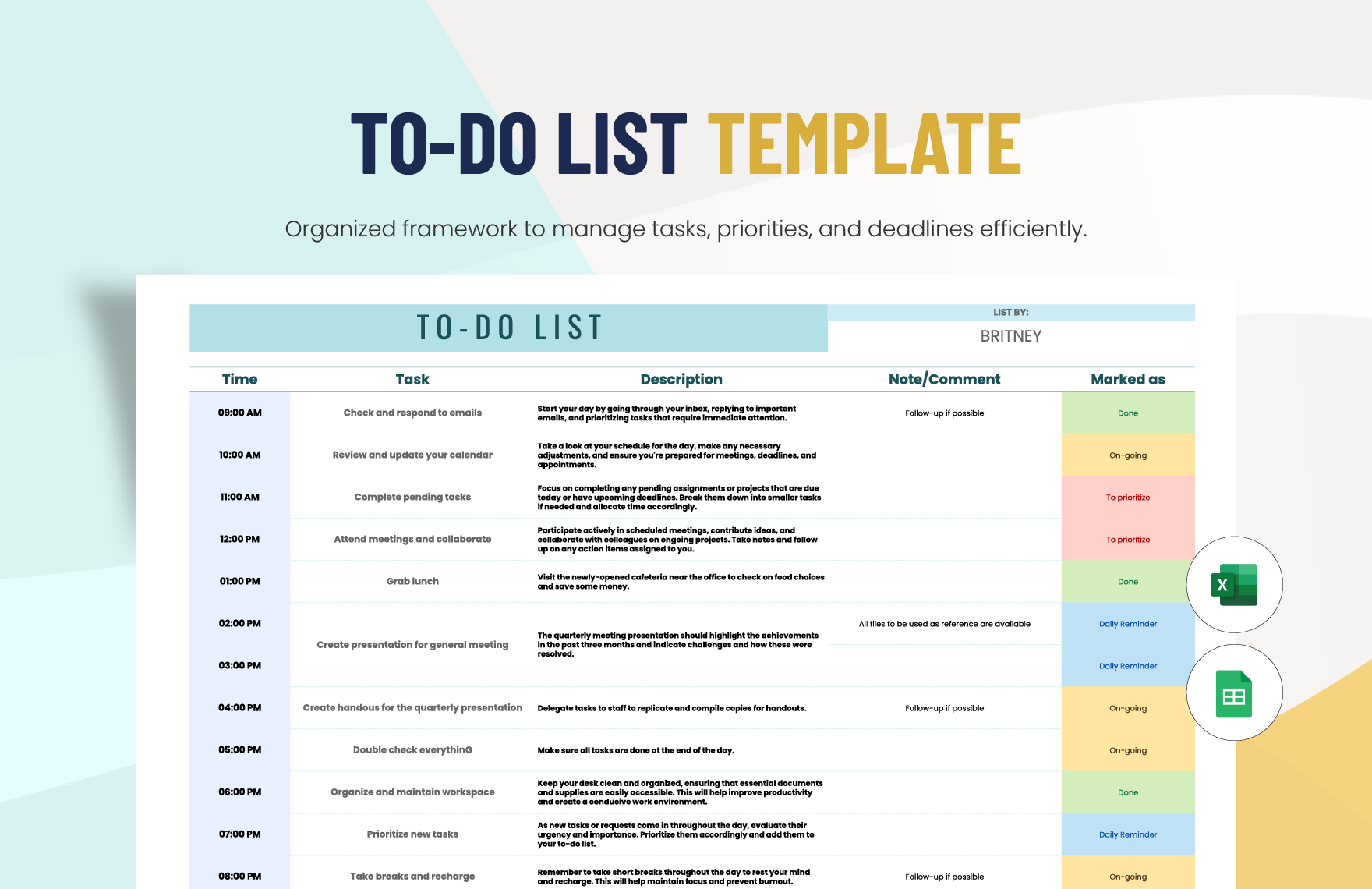
Nothing kills momentum like a chaotic workload. Without structure, tasks pile up, deadlines blur, and priorities disappear. That’s why a well-designed to-do list template in Excel isn’t just helpful—it’s essential. Unlike apps that lock you into rigid systems, Excel gives you full control. You decide the layout, the logic, and how much automation you want.
And the best part? You don’t need to be an Excel expert. With a few smart design choices, you can build a powerful, reusable to-do list that adapts to your workflow—whether you're managing a side project or leading a team.
Let’s build one that actually works.
Why Excel Beats
Most To-Do List Apps
Spreadsheets get a bad rap for being outdated. But when it comes to task management, Excel has quiet strengths most apps lack:
- Full customization: Add columns for priority, status, due date, category, or even estimated time.
- Offline access: No internet? No problem. Your list stays functional.
- No subscription fees: Once you have Excel, it’s free to use indefinitely.
- Built-in formulas: Automate status updates, highlight overdue tasks, or count completed items.
- Integration: Easily export data to reports, emails, or other tools like Outlook or Teams.
For many professionals, especially those already using Office 365, Excel is the invisible powerhouse behind their productivity.
Core Elements of an Effective Excel To-Do List Template
A good template isn’t just a place to jot down tasks. It should help you manage them. Include these key components:
#### 1. Task Name The most basic field—but keep descriptions actionable. Instead of “Project,” write “Draft client proposal for Acme Corp.”
#### 2. Due Date Use Excel’s date format so you can sort and filter by time. This enables automation later.
#### 3. Priority Level Label tasks as High, Medium, or Low. Or use a 1–3 scale. Consistency matters.
#### 4. Status Track progress with statuses like: - Not Started - In Progress - Completed - On Hold
#### 5. Category or Project Group tasks by project, client, or department. Makes filtering easier.
#### 6. Assigned To (for teams) Who owns the task? Critical for collaboration.
#### 7. Notes or Description A free-text column for details, links, or reminders.
Include these in your column headers, and you’ve got a foundation that scales.
Build Your Template in 6 Steps
You don’t need VBA or complex macros. Here’s how to build a functional, smart template step by step.
#### Step 1: Set Up the Structure Open a new workbook. In Row 1, create your headers:
A1: Task | B1: Category | C1: Due Date | D1: Priority | E1: Status | F1: Assigned To | G1: Notes
Freeze the top row (View > Freeze Panes) so headers stay visible when scrolling.
#### Step 2: Format Dates and Drop-Downs Select the Due Date column (C). Right-click > Format Cells > Date. Choose a clean format like 3/14/2025.

For Priority and Status, use data validation: - Select column D > Data > Data Validation - Allow: List - Source: High,Medium,Low Repeat for Status with: Not Started,In Progress,Completed,On Hold
Now users can click a dropdown—no typos, no inconsistency.
#### Step 3: Add Conditional Formatting Make the list self-updating visually.
Highlight the entire task table (e.g., A2:G100). Go to Home > Conditional Formatting > New Rule.
Rule 1: Highlight overdue tasks - Use a formula: =AND($C2<TODAY(), $E2<>"Completed") - Set format: Red fill, white text
Rule 2: Highlight high-priority tasks - Formula: =$D2="High" - Format: Orange border or bold text
Now critical items jump out without manual review.
#### Step 4: Insert a Progress Summary Above or beside your list, create a summary box:
| Metric | Formula |
|---|---|
| Total Tasks | =COUNTA(A2:A100) |
| Completed | =COUNTIF(E2:E100,"Completed") |
| Completion Rate | =Completed/Total Tasks |
Format the rate as a percentage. Add a simple bar chart if you want visual feedback.
#### Step 5: Enable Sorting and Filtering Click any cell in your list. Go to Data > Filter. Now you can: - Sort by due date (soonest first) - Filter to show only high-priority items - View tasks assigned to one person
This turns your list into an active management tool.
#### Step 6: Save as a Template Once done, save it properly: - File > Save As > Browse - Choose location (e.g., Documents) - Set “Save as type” to Excel Template (*.xltx) - Name: To-Do List Master.xltx
Now, every time you need a new list, open this template—it’s blank, formatted, and ready.
Real-World Use Cases That Work
A generic template fails when it doesn’t reflect real usage. Here are three proven scenarios:
#### 1. Daily Work Planner Columns: Task, Time Block (9–10 AM), Status Use: Plan each workday hour by hour. Filter by “Not Started” each morning.
#### 2. Project Tracker Add: Milestone, % Complete, Dependencies Use: Monitor multi-week projects. Conditional formatting flags delays.
#### 3. Household Task Manager Add: Family Member, Recurring (Yes/No) Use: Rotate chores. Filter by person to see who’s up next.
Each adapts the same base template to different needs—proof of its flexibility.
Common Mistakes to Avoid
Even smart templates fail when misused. Watch for these:
- Overcomplicating: Too many columns slow you down. Start minimal, add only what you use.
- Ignoring consistency: If “Due Date” is sometimes blank or in text format, sorting breaks.
- No review habit: A list only works if you check it. Set a daily 10-minute review.
- Forgetting backups: Save versions weekly or use OneDrive for automatic sync.
- Using it like sticky notes: If tasks stay “In Progress” for weeks, your status column is lying.
A clean, honest list is worth more than a full one.
5 Excel-Friendly To-Do List Alternatives (When You Need More)
While Excel is powerful, sometimes you need integration or collaboration at scale. Here are five tools that work well with or instead of Excel:
| Tool | Best For | Excel Integration |
|---|---|---|
| Microsoft To Do | Simple personal task management | Syncs via Outlook |
| Todoist | Recurring tasks, labels, filters | Export to CSV for Excel |
| Trello | Visual project tracking (Kanban) | Power-Up for Excel sync |
| Notion | Custom databases, notes, tasks | Manual export |
| ClickUp | Teams needing docs + tasks | Direct Excel export |
Use these when collaboration, mobile access, or automation exceed Excel’s ease. But for control and privacy, Excel often wins.
Enhance Your Template
with Simple Automation
You don’t need code. Use built-in formulas to save time.
Auto-Complete Date In a “Created Date” column, use: =IF(A2<>"",TODAY(),"") Note: This updates daily. For static dates, enter manually or use Power Query.
Flag Tasks Due in 3 Days Add a “Reminder” column: =IF(AND(C2-TODAY()<=3, E2<>"Completed"), "Urgent", "") Then apply conditional formatting to highlight “Urgent.”
Count High-Priority Tasks =COUNTIFS(D:D,"High", E:E,"Not Started") Place this in your dashboard to spot workload imbalances.
Small tweaks, big time savings.
Finalize and Use It Daily
Your template is only useful if you use it. Here’s how to make it stick:
- Open it first thing each morning. Add new tasks and review overdue ones.
- Mark one task as “Top Priority”—don’t let everything be urgent.
- End the day by updating status. Closure matters.
- Every Friday, archive completed tasks (copy to a “Done” sheet, then delete from main list).
A to-do list isn’t a graveyard of abandoned tasks. It’s a living tool.
A powerful to-do list template in Excel doesn’t require advanced skills—just smart structure. Build it once, refine it over time, and use it daily. Whether you're tracking personal goals or team deliverables, this simple spreadsheet can become your most reliable productivity partner.
Start with the basics, automate what hurts, and keep it honest. That’s how templates earn their place.
Frequently Asked Questions
Can I sync an Excel to-do list with my phone? Yes. Save your file to OneDrive or Dropbox and open it with the Excel mobile app. It updates in real time across devices.
How do I make a to-do list repeat weekly in Excel? Excel doesn’t auto-repeat natively. But you can copy-paste recurring tasks weekly or use Power Automate to clone rows based on rules.
Is Excel better than Google Sheets for to-do lists? Excel offers deeper formula support and offline functionality. Google Sheets wins for real-time collaboration. Choose based on your environment.
Can I create reminders in Excel like Outlook? Not directly. But you can use conditional formatting to highlight due tasks and pair Excel with calendar alerts in Outlook or Teams.
How do I share an Excel to-do list with my team? Save the file to a shared drive (OneDrive, SharePoint). Enable co-authoring so multiple people can edit simultaneously.
What’s the best way to track overdue tasks? Use a formula like =IF(AND(C2<TODAY(), E2<>"Completed"), "Overdue", "") and apply red formatting to that column.
Can I print my Excel to-do list cleanly? Yes. Go to Page Layout, set print area, adjust margins, and choose “Print Titles” to repeat headers. Use Print Preview to confirm.
FAQ
What should you look for in How to Create a To-Do List Template in Excel? Focus on relevance, practical value, and how well the solution matches real user intent.
Is How to Create a To-Do List Template in Excel suitable for beginners? That depends on the workflow, but a clear step-by-step approach usually makes it easier to start.
How do you compare options around How to Create a To-Do List Template in Excel? Compare features, trust signals, limitations, pricing, and ease of implementation.
What mistakes should you avoid? Avoid generic choices, weak validation, and decisions based only on marketing claims.
What is the next best step? Shortlist the most relevant options, validate them quickly, and refine from real-world results.